Saturday, 7 July 2018

Top 15+ Ways To Keep Your Windows Safe From Virus


Protecting your computer from deadly viruses or any other threat isn’t that much difficult, but you have to take some precautions. Therefore, we are going to share an evergreen methods to keep your Windows safe from virus. Follow the full post in order to secure your very precious computer.

Windows PC’S first obstacle is virus and trojans. Many users always seem to be puzzled on what they can do for assembling windows system virus proof. Therefore, we’ve stated some essential points, if you follow below points, the chance will be surely decreased that your computer suffers from a virus.

Always examine on the internet how you keep safe your computer from the virus because hackers/crackers always try to find the new way to hack your computer from virus.

How to Keep Windows Safe from Virus

#1 Install Microsoft Security Essentials (Antivirus)

Microsoft Security Essentials is a Microsoft Free Antivirus for every Windows PC users. MSE scans your Windows PC for a virus, unwanted software, trojans and malicious files. My advice to you is if you are not running any premium antivirus, download this free antivirus from Microsoft website and install in your system. MSE security tool downloads all latest security updates from Windows update so that your Windows machine is always safe from virus and trojans.

#2 Keep Your Window Up To Date

If you use Windows 7, 8 and 10 OS always keep your Windows update. Microsoft always releases new patches and security updates for Windows OS. These new updates and security patches keep your computer safe from virus and exploits. Always update your computer and keep your Windows away from the virus.

#3 Run New Application in Virtual Machine before installing in System

When you download software and applications from an unofficial website, you don’t know how that software can affect your system. Many times these software contains virus and trojans. Try strange software in the virtual machine (Virtual Box). Virtual Machine runs your software in the virtual environment, so malicious software never affects your computer directly. When you install lots of applications, your PC might be slow, and you don’t know how to speed up Windows PC.

#4 Firewall

Always switch on your Firewall against connected network connection. When you use antivirus like Kaspersky and Avast, they give inbuilt firewall software. But, if you do not use any Antivirus, always turn on your system firewall. Whenever you install any new software on system always check firewall rule of that software.

#5 Browser

Well, web browsers are the primary gateway for viruses and malware. Therefore, make sure to update your browser and set up proper security settings to your browsers, like ‘Warn me when sites try to install add-ons, block suspicious sites, etc.

#6 Never Open Un-authorized Email and site

When you browse the internet, never open malicious website. Use Google Chrome Browser. In Chrome browser when you click on a suspicious website, Google Chrome warns you. Never open any hidden links in email, if you don’t know what is inside it.

#7 Keep Distance From Infected Websites

We visit many sites without knowing whether the site is safe for browsing or not. Many times we see lots of Popup ads coming in front of the screen that always lands you to download page. These type of sites can spoof your data. So, it’s always better to look at the green lock in the address bar which contains the prefix of”Https” while dealing with any banking sites.

#8 Using Good And Trusted Web Browsers

It’s recently claimed that fresh installation of any Windows OS with Internet Explorer will be infected in minutes of browsing the internet. The real fact behind this was hackers usually target Internet Explorer on a daily basis. So using Google Chrome or Mozilla Firefox will be a better choice for sure.

#9 Update Your Anti-Virus Software

Well, having a proper security solution is the first step and maintaining it is the second one you need to do. If you are looking for free antivirus, then let me tell you, those antiviruses simply doesn’t work. Having a paid antivirus is recommended and updating it frequently will make sure your Windows is risk-free.

#10 Make Use Of The Anti-Virus by setting up scheduled scans


Very often we overlook the Antivirus software, we feel that installing the proper security solution is enough. However, you need to run full computer scan in regular intervals. So, make sure you have set up the schedule scans on your Antivirus software. Try running the full security scan at night when you aren’t using your computer.

#11 Scan For Malware

Well, sometimes even the best antivirus programs failed to defend an occasional attack. New malware are being created every day. Therefore, make sure to have a real-time malware scanner which can notice and stop the malware as they arrive. Malwarebytes Free version would be the best choice.

#12 Always Scan Pendrive for Virus and Trojans

When you plug any Pendrive or Memory Card, always scan Pendrive for a virus from antivirus. Many time virus comes from Pendrive and other media storage. If you doubt any file but your antivirus show nothing suspicious try online virus scanner Scan Files & Url from Online Scanner.

#13 Have Two Accounts

Mostly, malware and viruses require administrator rights to do harm to your computer. So, you need to put on an administrator-type account for managing Windows, and a local user accounts for work and play. So, make sure to create a new administrator account, then change your existing account’s type to Local.

#14 Password Management

You must learn the art of Password Management Because it plays the leading role to secure your online data. You must know the major difference between the good and a bad password. Today we are using email accounts, and we very often download files through it. What if someone attached a keylogger and you deliberately downloaded and installed it. So always put and secure and Unique Password.

#15 Secure Your Network

Well, now everyone is somehow connected to the internet. If you have WiFi network at home, make sure to secure it by setting up a secure password. You should never leave your WiFi connection open to anyone, always use WPA or WPA2 encryption. Well, broadcasting even the SSID is also not a good idea because hackers can still try to access your network.

#16 Don’t Use Public Wifi

Everyone loves the free internet. However, the Public Wifi network that use to connect for getting free internet can cost you a lot. Just imagine once, if you can access the network without any issue, what can a trained hacker do? Well, even if you are willing to connect to the Public WiFi, make sure you don’t do any financial transaction while connected to the same WiFi network.

#17 Always Check Before Downloading

First of all, you should always download files from trusted websites. However, if your trusted website fails to provide you with the much-needed software, then make sure to download it from the site which is running on HTTPS protocol. Apart from these, you should always double check before downloading any files from the internet. Hackers often push malware, viruses as an add-on bundled with the data. Well, having a good antivirus program will block dangerous files automatically, but it’s still recommended to double check files before downloading.

#18 System Backup

The reason why I had mentioned this one at very last is that it is the most important and must do preparation, which everyone must perform. It doesn’t matter whatever precautions you take today, but if you want to keep your very precious data safe and fresh, then you must create a complete System backup today. It would do the miracle to you if a deadly virus had just corrupted your System drives.

Chase above steps and make sure you follow the methods correctly because your one mistake can destroy your computer. Your Computer will never say I am Virus proof! Because as you update your antivirus, the viruses also modernize itself. Keep reading our posts as we will be updating new security tools and techniques for securing your computer from virus and trojans.

Tuesday, 19 June 2018

Best Free Graphic Designer Tools for Windows


Graphic Designing is something that essentially requires the quality and potent tools so as to create up those inspiring and motivating designs which would be linked up so much. Only if you are having the skills of designing graphics would not help you out to great that amazing designs but the tools that you utilize up for the purpose do matter a lot as these might only help you to create those designs. Now as for any of the category there are numerous software and tools available, so for most of the users it might be tricky to look up for the best ones’. And the another issue that overrides the challenge to further extent is that many of the tools which are great are changed with the price tags, for the users willing up to grasp the free tools it becomes difficult to look for the best ones’. Keeping those users looking for the best free Graphic Designing tools not able to find up their best glitches, we have listed about all those great free tools in this article. Just go and read out the article to know about all those best graphic designing tools!

Best Free Graphic Designer Tools for Windows

We have selected some of the best tools that work perfectly and are best according to their user ratings, reviews, download rates and some of our personal experience too. So have a look at these tools that we have stated below.

#1 Adobe Illustrator CS2

This tool is available for the free download by the users, ad this is pretty unusual as the tool is from the great developer community Adobe. This could be easy for the people to judge the quality and feature sets for any apps or tools developed by the Adobe as they always tend to provide the rock solid products. Illustrator CS2 is also one of the masterpieces by the Adobe which excels in the category of graphics designing. For the serious graphic designers, those who look forward to creating some professional graphics nothing could be better than the Illustrator CS2!

#2 Canva

This is the online masterpiece for the users those who are looking to create some professional graphics within few minutes only. Once you register to this, online tool you get on to the 50 free preset templates for making your own graphic designs but you could possibly get even more than thousands of, presents further by buying them. Although the free presets would be more than enough to help you create numerous of graphics under any category. Just give this a try for sure and you shall find it extremely beneficial!

#3 Sumo Paint

Another powerful design tool that operates inside your browser and for the access you don’t even require to spend any money at all as it is free of cost. This tool allows you to use advanced tools inside your browser such as to create up the graphics instantly and quickly. The only thing why this amazing tool is on our list is that you could easily transform any of your images into tremendous looking graphics with the simple clicks and drop downs. This tool could be preferred for the people who are working on to make the blazing graphics for their magazines or cover photos!

#4 Color Wheel

Are you looking for the perfect color to give that classy look to your themes, magazine covers or anything else but you are probably not knowing much about the color codes and rather just are known of those stingy color which you get from the palette. If this is something happening to you then the Color wheel could tremendously help you up. without any knowledge requirement for the complex color codes you could easily find up your best match for the colors and their combinations inside the Color Wheel tool. Overall a best way to look for the perfect color combinations and blends for your projects!

#5 Blender

The complete solution for the animations, video editing, gaming as well as intense graphic designing that is all packed inside the small package of about 100 MB. The blender is available for free as it is the open source software which is extremely used by the developers for the making of games and animations. Just give it a try and you would find it to be the really potential for thousands of your tasks!

So after reading out the article, you have known about all those best available Graphics Designer tools, and you might have easily found out one of your best liking tools with all functionality which could prove to help you out potential. Just pick up that favorite tool and install it on your device to start playing with the Graphics in a more advanced way with these probably best tools. Hope you like the tutorial, keep on sharing with others too. Leave a comment below if you have any related queries with this tutorial.

How to Download Paid or Hacked Apps Free on iOS 11+ (No Jailbreak)


The iOS is one of the most popular software platforms for the smartphone devices which is used by millions of the people worldwide and the exact reason for that is the availability of so many features and functions inside the OS, as well as numerous quality apps on the App Store specifically, made for the OS. Although there are a huge number of apps available for free download on the iOS, still there are so many extreme quality apps that the developers sell at some fixed amounts. The users need to buy those paid apps such as to use it and hence access their functions. Buying apps could be somewhere a load of the bundle for some of the users, and they would seek for some way to download those apps for free, probably get down soon because there is no working way out there till now. Fortunately for the users seeking to download the paid apps on iOS for free, there is some real method which would help you override all those fake ones and hence gain access to those paid apps. Here in this article, we have described that particular method, just read up the article to grasp the knowledge about that!

How to Download Paid or Hacked Apps Free on iOS (No Jailbreak)

The method is quite simple and easy and you just need to do is install a third party app store on your iOS device that will help to get paid apps for free on your ios device. As this is now well known paid apps free downloading store known as Tutu app store for ios device that is now benefiting lots of its user by getting all the premium apps for free. So you are just one download away to get your favorite premium apps for free. And this is very simple to implement that any nontech guy can also do this. So let’s proceed to the steps below.

Steps to Download Paid or Hacked Apps Free On iOS (No Jailbreak):

#1 First of all download and install up to the Tutu helper app on your iOS device, i.e., either iPhone or iPad. For installing the tutu app, you need to visit the link here, and there you need to scan the below QR code as this is the only easy way by which you can get this app store on your device.

#2 Now there will be two download options, one will be regular, and other will be VIP, and you need to select regularly as other will confuse you a lot so better is to go with regular one.

#3 Now after downloading the app, install it on your device. And when the app gets installed, you will see the app in your menu, and when you will tap on the app you will see the option untrusted enterprise developer, and to remove it and access the app, you need to follow the below steps as this warning is by default in ios platform when your install any other third party app as Apple don’t trust any of the third party apps on their operating system.

#4 If you want to remove this then simply in your iOS device, go to Settings -> General -> Profile and Device Management -> Winner Media Co., Ltd and there you will see trust option, simply tap on it and now you will see that warning will be not there when you try to open the app.

#5 Open up the Tutu app and then using the search bar inside the app search for the favorite paid app that you wish to install for free on your iOS device. Now just remember that you should type in the exact app name which you want to look for and then only the app would be located by the app’s search results.

#6 Look for your accurate paid app from the search results inside the Tutu app and then click on the Get It button which would be placed next to it. After hitting the Get It button you need to click on the Install button on the popup so as to start the installation of that particular app. Which means that paid app is right on your ios device and that too without paying any single penny by just using the app store we discussed above.

finally you have got about the way through which you could be able to install the paid apps on your iOS device and hence override the need to pay for those great and extensive apps. You could now be able to install up to the paid apps so very easily like if you are installing any simple regular app.As through, the article you have got the thing that the method is not at all difficult and anyone could do up the implementation in no time. Hope you like the tutorial, keep on sharing with others too. Leave a comment below if you have any related queries with this tutorial as we will be always here for all our techviral users to assist.

How To Schedule Text Messages On Android


As we all know that Android is a very intelligent operating system and the reason behind that was there are so numerous apps accessible in the Play store that can completely change out your user experience in it. Let’s now talk about the text messages, although apps like WhatsApp and messenger etc replace this traditional way of texting this service is still in use.

So, we are here with a method for How To Schedule Text Messages On Android. Yes, it is possible in your android device and you can implement on your android device and schedule your SMS to send them later. So just proceed with below method.

Easily Schedule Text Messages On Android

In Android, you can schedule your SMS with an excellent app that I have discussed below. By using this app you can easily schedule any message for sending it later at any time you want. You just have to follow some simple steps below to proceed.

Steps To Schedule Text Messages On Android:-

Step 1. First of all, you need to disable your default messaging app notification otherwise you will get two notification on every message that you receive. In your android just navigate to the Settings -> Sounds & Notification -> App Notification -> Turn off messaging app notification.

Step 2. Now in your android device download and install the app Textra SMS in which you will be able to schedule your SMS.

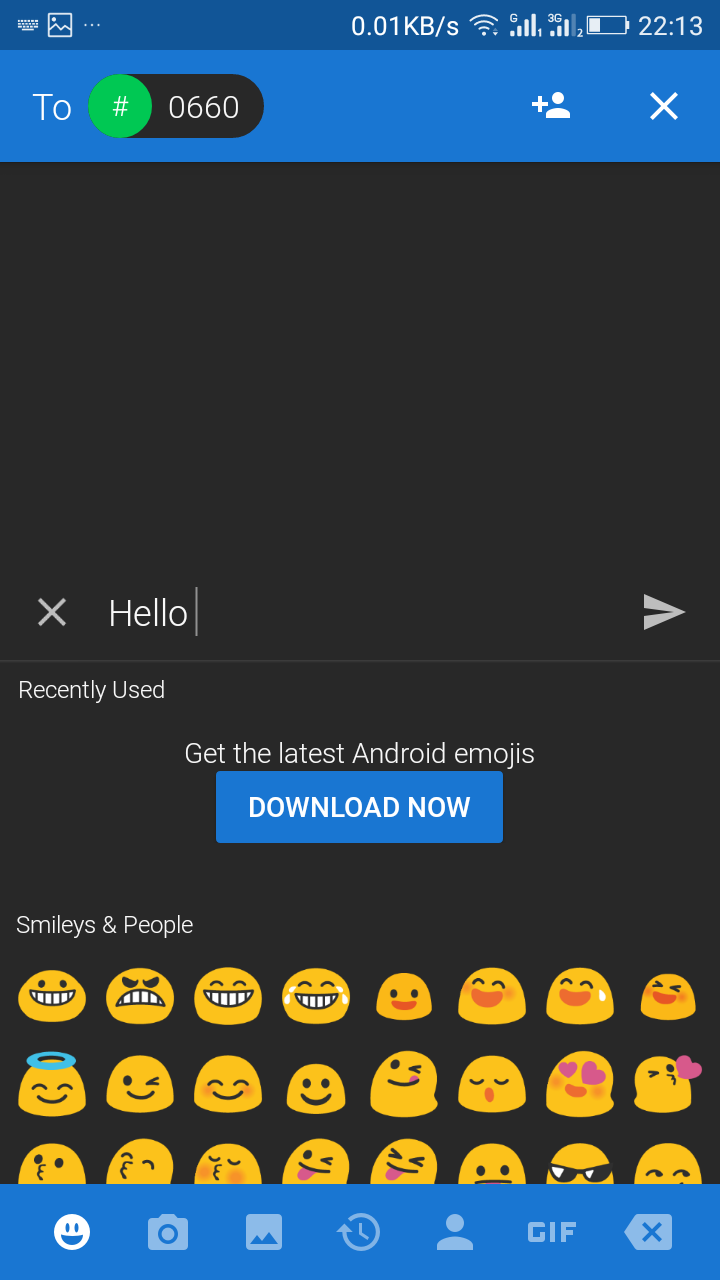
Step 3. Now open the text app and type your message to the recipient you want to send the message.

Step 4. Now tap on plus button and at below of the keypad, you will see a clock sign option, just tap on it.

Step 5. Now set the time after which you want to send your message and then tap on send or arrow button.

Step 6. That’s it! you are done, you have successfully scheduled your text message on your android and now your message will get sent to the recipient after the set time period.

So above is all about How To Schedule Text Messages On Android. With this method now you can wish anyone birthday or any other greetings at the late night by just scheduling the messages and there will be no need to remember the event to make the greetings. Hope you like this cool post, don’t forget to share it with others too. Leave a comment below if you have any related queries.

YouTube Downloader sites are being banned


We all know very well that one of the main threats to the music industry is the sites that allow you to download music from YouTube. However, now according to the latest reports, the pressure from the court and music industry has managed to ban three well-known YouTube download sites.

Goodbye YouTube Download Websites

One of the main threats to the music industry is the sites that allow you to download music from YouTube. Thanks to them, the record companies no longer receive the revenue that would come from streaming services and the sale of CDs.

For this reason, companies are under heavy court pressure, which makes many sites voluntarily terminate their activities. In recent days, three services have decided to follow this path: Video-download.co, EasyLoad and PickVideo.

They will no longer offer video download and conversion services after receiving letters that require the termination of their activities.

Video-download.co keeps displaying its page, but it displays a message when there is an attempt to download a video is made. In the text, the page recalls the case involving YouTube-MP3, which offered the same features and left the air.

“Bad news … we decided to disable all video download functionality forever because of the recent removal of the YouTube-MP3 site, which was based in Germany (just like us),” the page says.

The YouTube-MP3 ended in September last year after a lawsuit by representatives of record companies. At the time, YouTube-MP3 owner Philip Matesanz agreed to surrender the domain of the site and agreed to pay compensation for the damages.

The result was considered a victory of the record companies since it would also put pressure on other similar pages. The head of Video-download.co says he received the statement from an American company. The document states that the site should be closed by June 12 and reminds that its services violate the law.

EasyLoad also cited the YouTube-MP3 case to justify the end of its service. “Due to the recent removal of YouTube-MP3.org, we are forced to disable the functionality of our site,” the message says.

PickVideo, which lets you download content from YouTube, Instagram, Facebook, Twitter and hundreds of other sites, no longer offers these features. “We’re sorry to inform you that all download and conversion services have been disabled to comply with a ‘cessation and withdrawal’ request.”

Record labels know that closing three sites does not solve the problem. However, the rapid compliance with the determinations present in the internet sites shows that companies are increasingly closing the siege of video download services.

So, what do you think about this? Simply share all your views and thoughts in the comment section below.

Saturday, 16 June 2018

Best Xbox One Emulator for Windows PC [Xbox Games on PC] 2018


The emulator is the software environment that enables the system to play or run a different kind of unsuitable apps or the platform. The same system becomes even more configurable and the number of things can be run easily on the device. Xbox emulator is the one that enables to run the Xbox games on the Windows PC. Actually, there is a numerous number of Xbox one emulators that exist on the internet but not all are the best. This can take a lot of efforts to try and find the best emulator! To help the users find the best Xbox One emulator easily we have written this article, here we have presented the list of the best Xbox One emulators for Windows. If you are interested to know about the Emulators then just go and read out the whole information given below till the end. You will surely like the data given here, so why not to start reading it from below!

Best Xbox One Emulator for Windows PC [Xbox Games on PC] 2018

In my cuboid, I found 7 Xbox games Disc but unfortunately I had already sold my Xbox so I was thinking about the way by which I can play those games on my Laptop as those were selected games that were my all time favorite. So I decided to play them by any possible way and then I researched over the internet to get the tools that can run these games on my PC so I found some of the emulators that can actually be used to run your favorite Xbox games on the PC. I tried 1-2 of them and that was an amazing experience as everything was working perfect and I attached the external controller and played those games. So I thought about other Xbox lovers like me and then I started writing this guide so that you guys can also use the same. So have a look at these emulators that I had selected on the basis of user ratings, reviews, and download rates.

#1 CXBX Emulator


All the Xbox functions and the games work like charm on this emulator. This is the finest emulator for the Windows that could be used to run the Xbox functions and get the power of it inside the already installed system. Windows will never let you feel like you are using this particular platform for running the Xbox games when on this emulator. Try it once and you will like it for always!

#2 Xeon Emulator


This is the another best Xbox one emulator that will help you get the things you didn’t like in the CXBX. Almost equally capable of doing the things up and you will never ever feel like you are on the Windows and this platform is making you run the Xbox games without any issues. If you are the one who is tired of finding for the best Xbox One emulator and the ultimate toolpiece for the same then this can be your end choice.

#3  Xenia Emulator


Most stable and fast Xbox One emulator that is capable of running the heavy games and the graphic extensive games on the device. The main reason why the people leave the most of the emulators is the capacity missing to run the dense games. Yet this only emulator will amaze you by its hardcore performance and the peak level experience!

#4 DXBX Emulator


Here comes the minimal form of the Xbox One emulator as it is not too large and is easily able to be run on the Windows device to get the functions. The only thing this emulator will give you is the promise that you can run the emulator efficiently and easily. Try it for once and you will find it to be very useful!

#5 EX360E Xbox 360 Emulator


Not filled with tons of features but with almost required features, this emulator will give you the tons of option sets to mold the games and run on the Windows device. This is the last one on the list but still the best you can use! And this was the tool that I tried at him first. While I was trying it at very first I thought it will not work exactly like my Xbox but I was amazed at the results.

Finally, after reading this post, you have got to know about the best Xbox One Emulator for Windows PC. We have tried to present the whole information in such a way that it could be easily grasped and eventually you would have got it easily. Hope that you would have liked the data on this page, if it is so then please try to share it with others too. We really appreciate your indulgence in our work because it’s all about you that we gain more heights. Please try to share your opinions and suggestions regarding this post through using the comments box below. At last but nevertheless thanks for reading this post!

How to Repair a Crashed SD Card and Protect your Data


SD card is the most convenient way to expand the memory of any memory, save data, and it is really easy to shift the memory card to any other device. This storage is reliable and more probably there are no issues found with it anyhow. One issue that is faced by the users for the memory card is the crashing issue of the SD card. While if the SD card crashes then the whole data inside it is ruined and the user is unable to access it. However, the crashed SD card is really tough to be recovered as there are no such tools or the options by default available. But still in some way the users could easily repair their crashed SD card and hence get back the data. Here in this article, we have written about that method through which the crashed SD card could be repaired and hence protect your data. If you are interested to know about the method then please go and read out the whole information given in this page till the end. We believe that this is enough for the introduction of the post, we should now start with the method below!

How to Repair a Crashed SD Card and Protect your Data

 We are going to state some of the steps that you could follow so as to get your SD card repaired. Please check all of the different steps given below.

Steps to Repair a Crashed SD Card and Protect your Data:
#1 Clean the SD card physically by wiping the clean cloth over it. Sometimes due to the obstruction by the dust particles the SD card start to lose the contact with the wires. This step is simple and you could eventually do it regularly for the betterment. Just remember that you have to prevent the contact of wet cloth with the memory card as the water could cause the formation of an oxygenated layer on the copper elements that would thereafter affect the blocking of connections.

#2 Formatting the SD card could be the option to get it working again after crashing. Some virus or the causing files might be affecting the SD card to crash. Formatting simply removes the viruses and the causing files thereafter letting the SD card to work again. But there is one thing you have to notice, it is that you would not be able to get your all of the data back!

#3 Sometimes when you try to install the SD card in any of the devices but it does not read it properly, the reason could be that your device is not compatible to run such kind of SD card. Yes, there are the compatibility issues that could cause the memory card to not run properly and show the signs of crashing. Try to utilize your memory card in any other device so as to get access to all of the files inside it.

#4 Troubleshoot and diagnose the SD card through using the tools on the PC. Simply connect the SD card using the card reader and then through using the tools find out any issues with the card. There are numerous tools available for repairing the SD card so you can use them for the benefit.

So finally through this article, you have got to know about the method by which the SD card could be repaired and hence the data in it could be saved for the further access. We have tried to present the method in easy to grab manner and we believe that you could possibly get to know about it easily. Hope that you would have liked the information in this post, if it is so then please share it with others. Also, do not forget to share the post with others, let most of the people know about the method. Share your comments about the post through using the comment box below. At last never the fewer thanks for reading this post!

How To Find Serial Key Of Any Software 2018 (Google Hack)


Here is method by which you can easily find serial key of any software 2018 on internet. Mostly these softwares are third party software. And the product key is inturn paid for the user and at the end of day software is freeware only for few days. But there is method by which you can use these software for free.

Today there is much software that is not exactly paid that is they are freely available on the internet to download. But some of this software needs a renewal product key for further access the service of the software.

How To Find Serial Key Of Any Software 2018 (Google Hack)

Actually, there are some sites which can provide you the serial key of the software which you want to activate. But the major issue is that you can’t get those sites by directly searching with the normal keywords. As these sites are not given that much preference that they can come up in google. So in this google database searching trick, I will tell you a specific searching technique by which you will be able to find a serial key or product key of any software for free. Just follow the below method.
Steps To Find Serial Key Of Any Software:
1. First of all open Google.
2. Type there your Software Name and “94FBR“
(For e.g. ” Nero express 94FBR“)


Now you will see in search result you will directly see your product keys, just copy it and paste in your software text field.
That’s it you are done, now you are able to find product key of any software.

So above is a method for How To Find Serial Key Of Any Software. By this method, you can easily get product, activation and serial key of any software and freely use that paid software. And there will be no need to scroll different sites and just wasting your time on different websites. Hope you like the post don’t forget to share it with your friends and leave a comment below about your experience with this cool Google search Trick.

Top 15 Best Antivirus For Your Android Smartphone In 2018


As today, every 8 of 10 people are using the Android smartphone. Due to expansion in Android’s following, there is also progress in the hazard of viruses and malware.

It becomes unavoidable to protect your Android smartphone. Now the question awakes, how to protect the Android phone? As there are numbers of antiviruses accessible on Google play store. But are they actually defending your Android? So, I tested many of these and developed the list of top best antivirus for android 2018.

Top 15 Best Antivirus For Your Android Smartphone In 2018

#1 AVG Antivirus

It is the one of the best Antivirus for Android in 2018 not particularly for PC but also for Android mobiles and tablets. It’s rating on Google play store is 4.4 and still available for free. I strongly recommend everyone to download it due to following features:

  • Scan apps, settings, files & media in real time.
  • Enable finding/locating your lost/stolen phone via Google Maps.
  • Lock/wipe your device to protect your privacy.
  • Kill tasks that slow your device.
  • Monitor battery, storage and data package usage.

#2 AVAST Mobile Security

As you know, Avast renders the best protection for our PC. Now it also does same for our Android. It gives excellent protection and removes unwanted files and viruses also. Its rating is 4.4 on play store. It has following features:-

  • Removes viruses, malware, and spyware.
  • Advanced Anti-Theft component keeps your data safe.
  • Locate your lost phone.
  • Network meter, app manager, and even firewall features.

#3 360 Security

It is another free best antivirus for Android. And it also comes up with free security protection and Speed Booster for an Android phone. It’s rating on play store is 4.4. It has following features.

  • Scan and remove viruses
  • Accelerator and Power-saver Scan and close idle background apps as well as clear private usage history with one tap.
  • Shake and Cleanup Shake and Cleanup function for easy and fun system cleanup.
  • Call Blocker Block unwanted phone calls and enjoy a disturb-free mobile life.

#4 Dr. Web Antivirus Light

It is another popular antivirus for Android and has the rating of 4.4 on play store. It uses the unique Origins Tracing™ technology, detects new, unknown malware. It has following features.

  • Real-time file system scanning with SpIDer Guard monitor.
  • Protects the SD card from becoming infected.
  • Anti-theft protection.
  • Remotely erase data on the device and SD card.

#5 NQ Mobile Security

It is also award-winning popular antivirus app for a security of your Android smartphone. Its rating is 4.4 on play store. It has following features.:

  • Antivirus & security protection.
  • Anti-spam.
  • Internet protection.
  • App manager uninstalls software by single clicking.

#6 Bitdefender Antivirus Free

BitDefender is one of the award-winning antiviruses out there in google play. The good thing is that this doesn’t take much time to scan your files and the scanned results are accurate. It is one of the most powerful antivirus solutions if you are looking for the free one. It has following features:

  • Unparalleled Detection: It automatically scans any newly installed apps that you recently downloaded
  • Feather-Light Performance: Not only this was fast and it doesn’t consume much battery you will get free scanning of your in cloud services too
  • Hassle-Free Operation- You doesn’t need to open up antivirus in case you slept its autopilot facilities checks all apps suspicious activity
  • Upgrade to Total Security for Android Devices – You can easily get a free 14-day trial version of Bitdefender Total security for free.

#7 CM Security

CM security is the must-have app, the reason behind this is a simple design. It is allrounder app which gives your device required security and safety. It is ranked one of the top apps by AV-Test. It enables the features of App Lock, Intruder Selfie, Hide Private Chats, Wifi security and much more. It has following features:

  • AppLock & Vault – The fastest & safest app lock for android in the world
  • Find Phone | Anti-Theft (NEW!)
  • APP & System Scanner, SD Card Scan, On-Install Scan,
  • Call Blocking & Safe Browsing

#8 Mobile Security & Antivirus

It is the security app developed by ESET productivity which is one of the leading antivirus company in PC. The best thing you will get installing this app is the Quarantine folder, it resides all the infected files in Quarantine folder instead of permanently deleting them. This also supports Remote Lock, Remote Siren etc. It has following features:

  • Proactive Anti-Theft which notifies you of suspicious activity
  • Online management of your lost or stolen device at my.eset.com
  • Scheduled scanning of apps, settings, files
  • Safe browsing and phishing protection
  • Device Monitoring of important settings
  • Application Audit of installed apps to tell you what they have access to
  • SMS/MMS/Call blocking
  • On-charger scan to preserve battery life
  • Automatic updates of key modules and settings
  • Mobile cybersecurity education

#9 Antivirus & Mobile Security From Trust Go

TrustGo is a free professional antivirus application. It features the most powerful virus scan engine, allowing you to quickly find malicious apps carrying viruses or stealing private data on your mobile devices. It has the following features:

  • Fully scans every app to prevent virus and Trojan and protect your privacy.
  • Performs a deep scan of the system to find hidden viruses.
  • Completely free backup and recovery feature that supports one-key backup and restoration of contacts, SMS, and call history.
  • Allows you to easily view privacy-related apps to identify and prevent risks.

#10 Avira Antivirus Security

Avira is one of the most trust antivirus programs when it comes to protecting your PC or Android. We all know about the potential of Avira Antivirus it is one of the leading antiviruses in the market. Here are the features of Avira Antivirus

  • Shield your devices (smartphones, tablets, phablets) from malware.
  • Find your lost or stolen phone
  • Protect your private data (photos, SMS, etc.) from theft
  • See how each app collects sensitive data
  • Block unauthorized access to other applications installed on your device
  • Light on system resources, to help save battery power

#11 Kaspersky Antivirus & Security

Kaspersky Internet Security for Android is a FREE-to-download antivirus solution that helps protect your smartphones and tablets, as well as any personal data stored on your devices, against dangerous mobile threats, viruses, spyware, Trojans etc. It has the following features:

  • Scan and detect dangerous viruses, malware, spyware and Trojans
  • Remove viruses and other threats from smartphones and tablets
  • Protect your personal data and privacy: calls, SMS texts, contacts
  • Keep financial data secure while surfing the Web
  • Block unwanted phone calls and SMS texts.

#12 Lookout Security & Antivirus

Lookout builds security technology that protects people, businesses, governments, and critical infrastructure from the growing threats in the era of PC and smartphones. It has some extraordinary features which turn to be very useful if you want to protect your device. It has the following features:

  • Get an email with a photo and location when someone messes with your device. (Also known as a “Theftie”)
  • Safe Browsing: Block dangerous URLs while browsing on Chrome or the stock Android browser.
  • Privacy Advisor: See what personal information can be accessed by your apps
  • Lock & Wipe: Remotely lock your device, post a custom message and erase your data.

#13 Malwarebytes Anti-Malware

Malwarebytes Anti-Malware Mobile protects your phone or tablet from malware, infected apps, and unauthorized surveillance. It is one of the world’s most popular anti-malware app that can protect you from various malware attacks. It has the following features:
Detects and eliminates malware, including spyware and Trojans

  • Scans your apps for malicious code or Potentially Unwanted Programs (PUPs)
  • Alerts you if a link to a malicious website is detected in an incoming text message (SMS).
  • Scans your Android device for security vulnerabilities

#14 McAfee

McAfee Mobile Security protects and enhances your Android phone or tablet’s performance with award-winning Antitheft, Find Device, App Privacy Protection, Antivirus, Performance Optimization, and Security features from Intel Security. It has the following features:


  • Pair your Android Wear: Loss prevention, Wi-Fi & malware protection & productivity
  • CaptureCam: Takes a snapshot of the person holding your lost device and emails you the photo along with the device location. Can be triggered from https://www.mcafeemobilesecurity.com/
  • S.O.S: Saves your last device location before it runs out of battery
  • Device Lock: Prevent misuse of your phone and personal info by remotely locking it.

#15 Clean Master

Clean master is usually known for Android optimizer and junk file cleaner, speed booster, and battery saver. However, it also provides an antivirus engine which is effective too. It secures private data with app lock functions too. You can scan the system, pre-installed and user-installed apps to keep your device safe from viruses, Trojans, vulnerabilities, adware, and spyware. Keep your privacy safe by scrubbing personal info from your device.

So, this is all about best antivirus for Android, according to my point of view for protecting our Android. If you know some other best antivirus for Android or have any doubt or need help just comment it below. Share this post with your friends too!